

Skip to content
logo logo
  • Home
  • Pricing
  • Loyalty news
  • Partnerships
  • Contact
  • Support
Install

Introduction

3
  • Snap Rewards Overview
  • Where to find Snap Rewards
  • Installing on your Shopify Store

Configuring a Campaign

10
  • Get Started with Snap Rewards and Klaviyo
  • The Campaign Screen
  • General
  • Receipt Uploads
  • Vouchers
  • Messages
  • Privacy and Consent
  • Email Templates
  • Configuring Your Snap Rewards Campaign Landing Page
  • Integrating Snap Rewards with Shopify Flow

Managing a Campaign

3
  • Viewing Campaign Data
  • Approving / Rejecting Submissions
  • Exporting Data
View Categories
  • Home
  • Docs
  • Configuring a Campaign
  • Integrating Snap Rewards with Shopify Flow

Integrating Snap Rewards with Shopify Flow

1 min read

Automatically Award Loyalty Points When Customers Upload Receipts #

Snap Rewards lets your customers upload receipts from your campaign landing page and instantly earn loyalty points.
With Shopify Flow, you can connect Snap Rewards to any compatible loyalty platform — including Joy: Loyalty Program, one of the most popular loyalty apps on Shopify.

This guide will walk you through the full setup:

  • Configure your Snap Rewards campaign
  • Create a Shopify Flow automation
  • Connect Snap Rewards to Joy
  • Automatically send points to the customer

1. Configure Your Snap Rewards Campaign #

  1. In your Snap Rewards dashboard, open your campaign.
  2. Navigate to the Rewards tab.
  3. Select Loyalty Points as the Reward Type.
  4. Choose Shopify Flow as the Loyalty Provider.

(Screenshot: Snap Rewards → Configure Campaign → Loyalty Points → Shopify Flow)
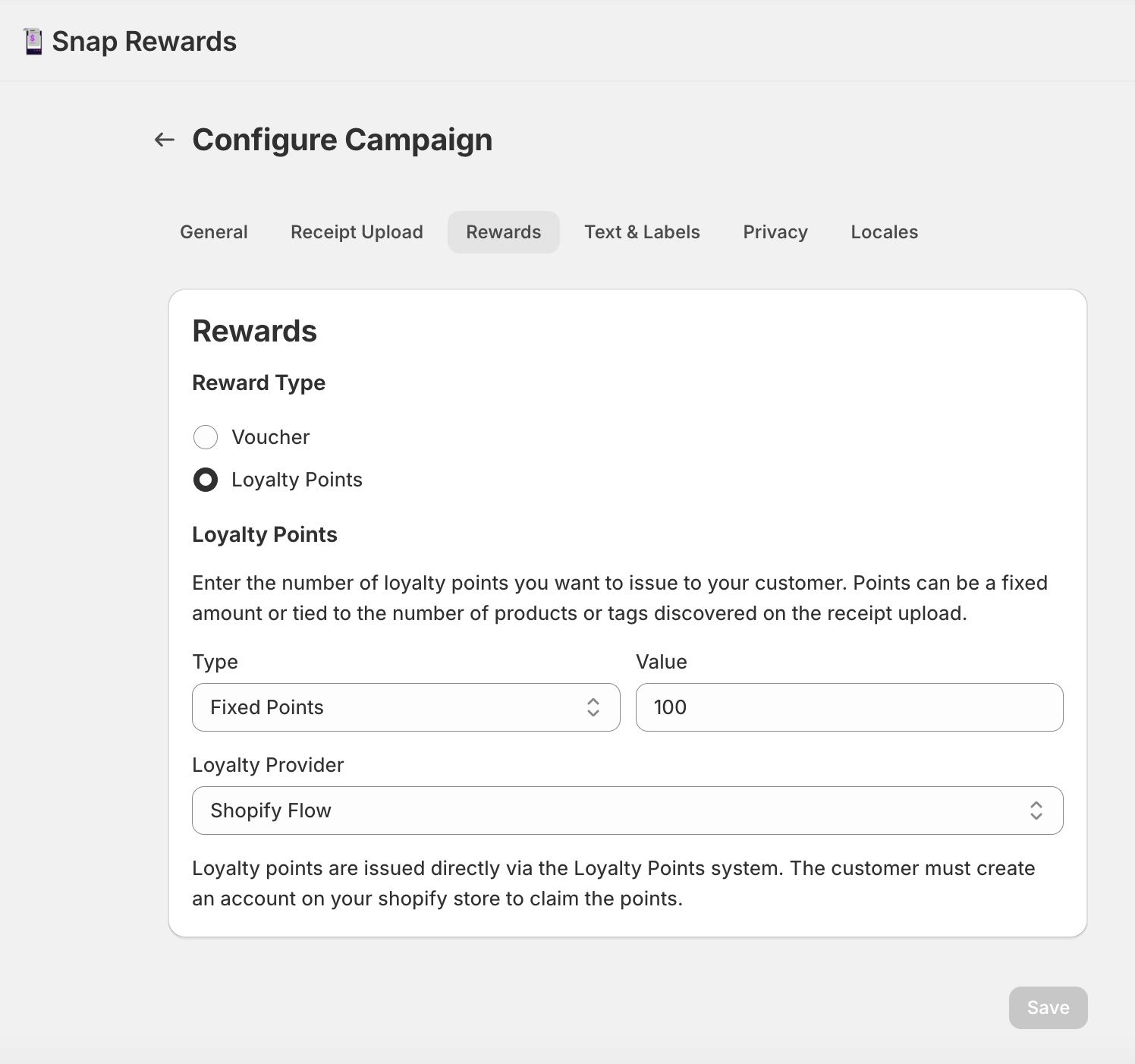
image 1

This enables Snap Rewards to send a Flow event each time points are issued.


2. Open the Shopify Flow App #

  1. In your Shopify Admin, go to Apps → Flow.
  2. Click Create workflow.

(Screenshot: Shopify Flow → Create Workflow)

image 2

3. Choose the Snap Rewards Trigger #

  1. Click Select a Trigger.

(Screenshot: Start building → Select a trigger)
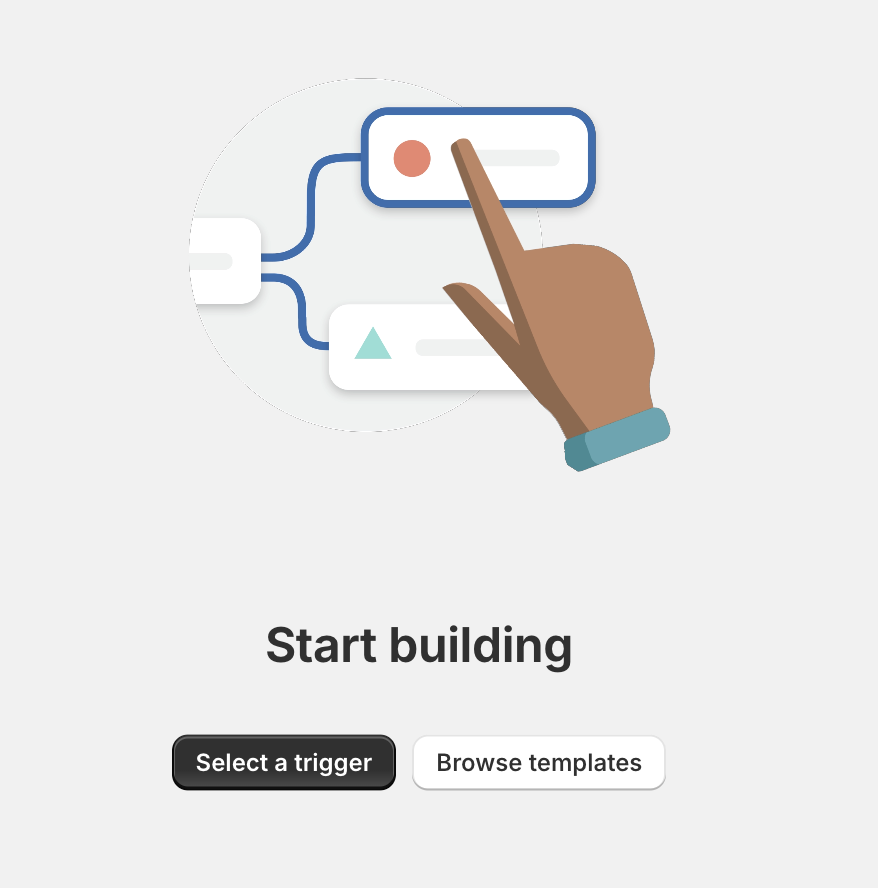
image 3
  1. Select Snap Rewards from the Installed Apps list.
  2. Choose Reward Points Issued.

(Screenshots: Snap Rewards → Reward Points Issued)
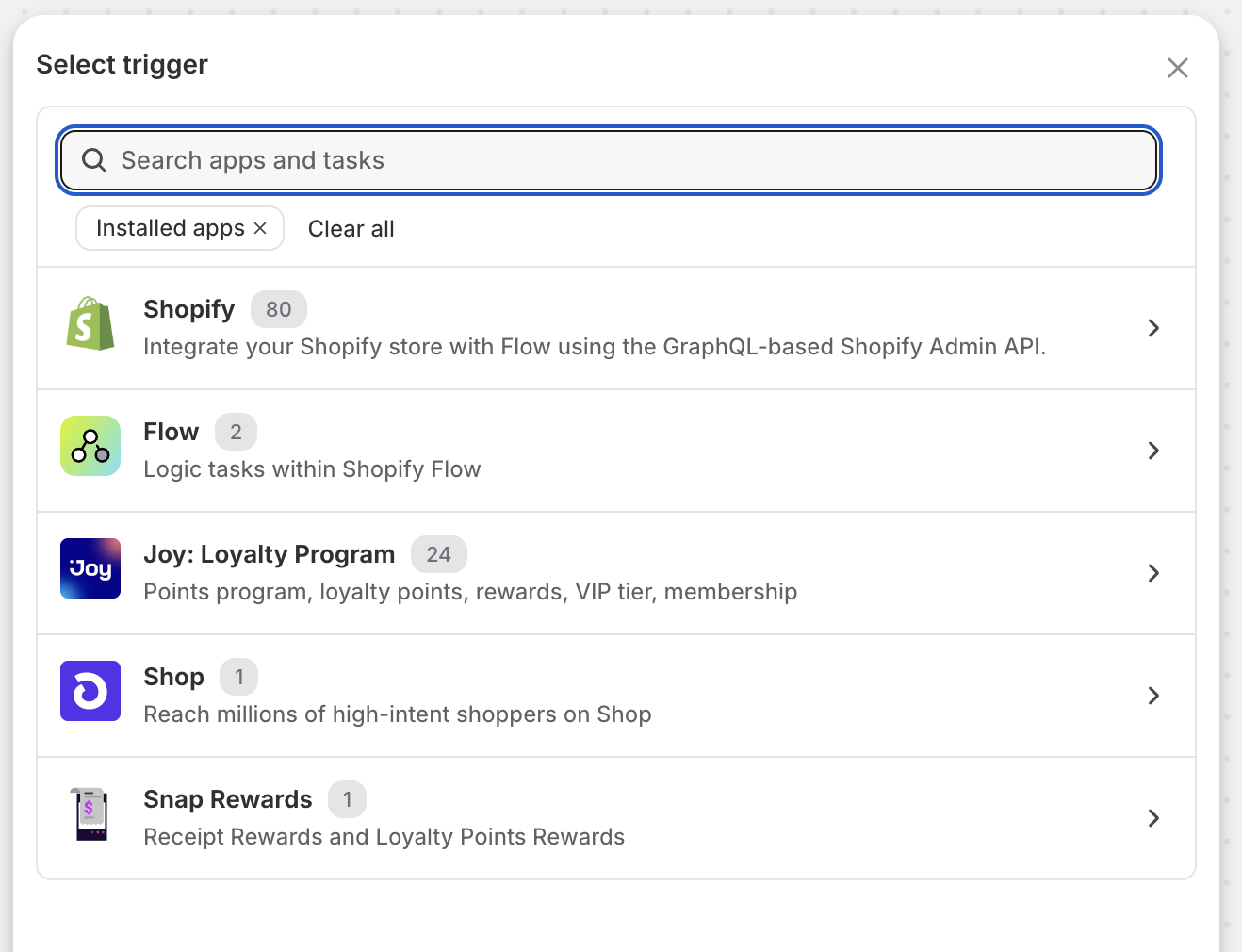
image 4

This trigger fires whenever a customer earns points through Snap Rewards.
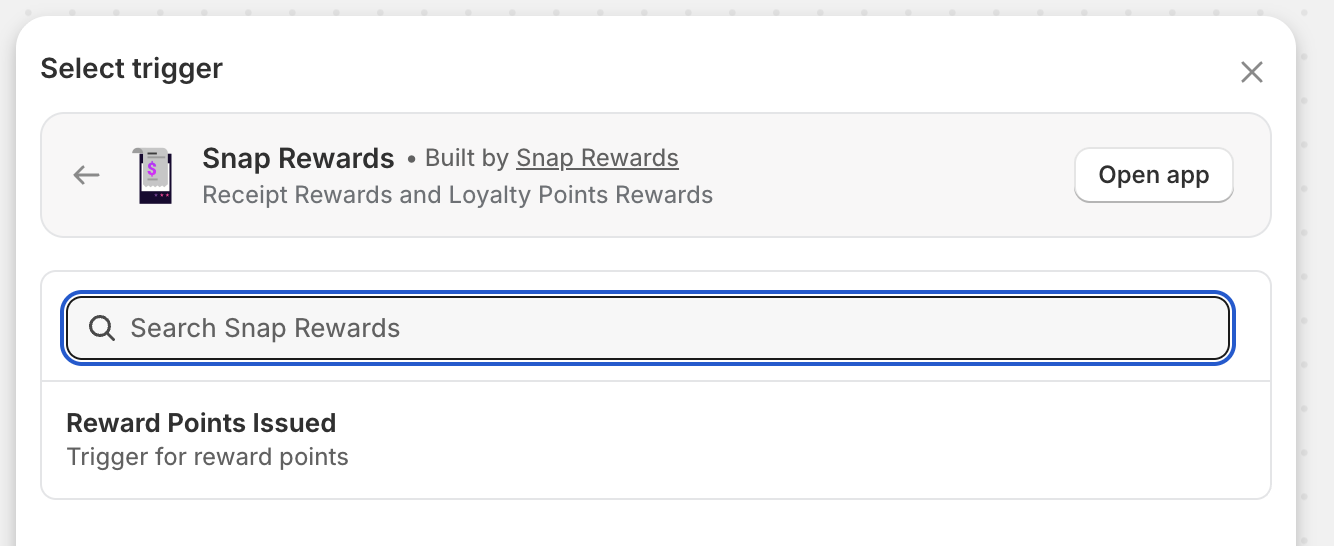
image 5

4. Add Your Joy Loyalty Action #

  1. Click the Trigger block inside the workflow.
  2. Select Action.

(Screenshot: Trigger → Action)
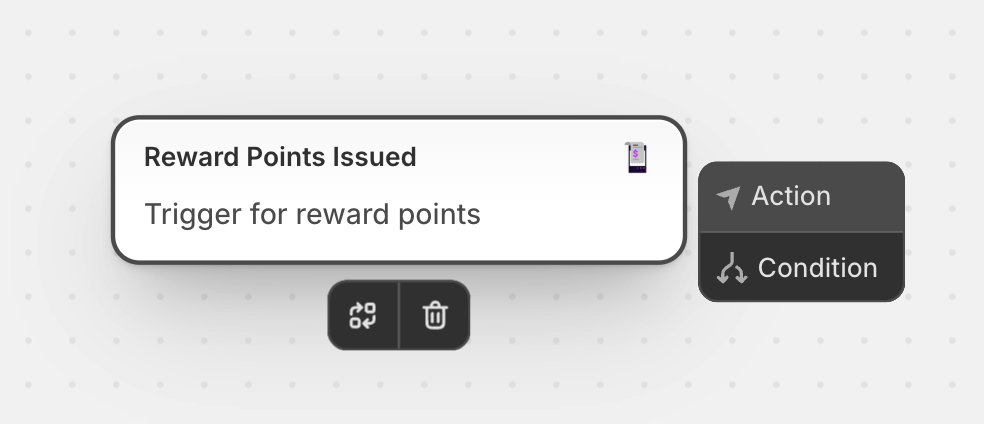
image 6
  1. Choose Joy: Loyalty Program from the action list.

(Screenshot: Actions → Joy Loyalty Program)
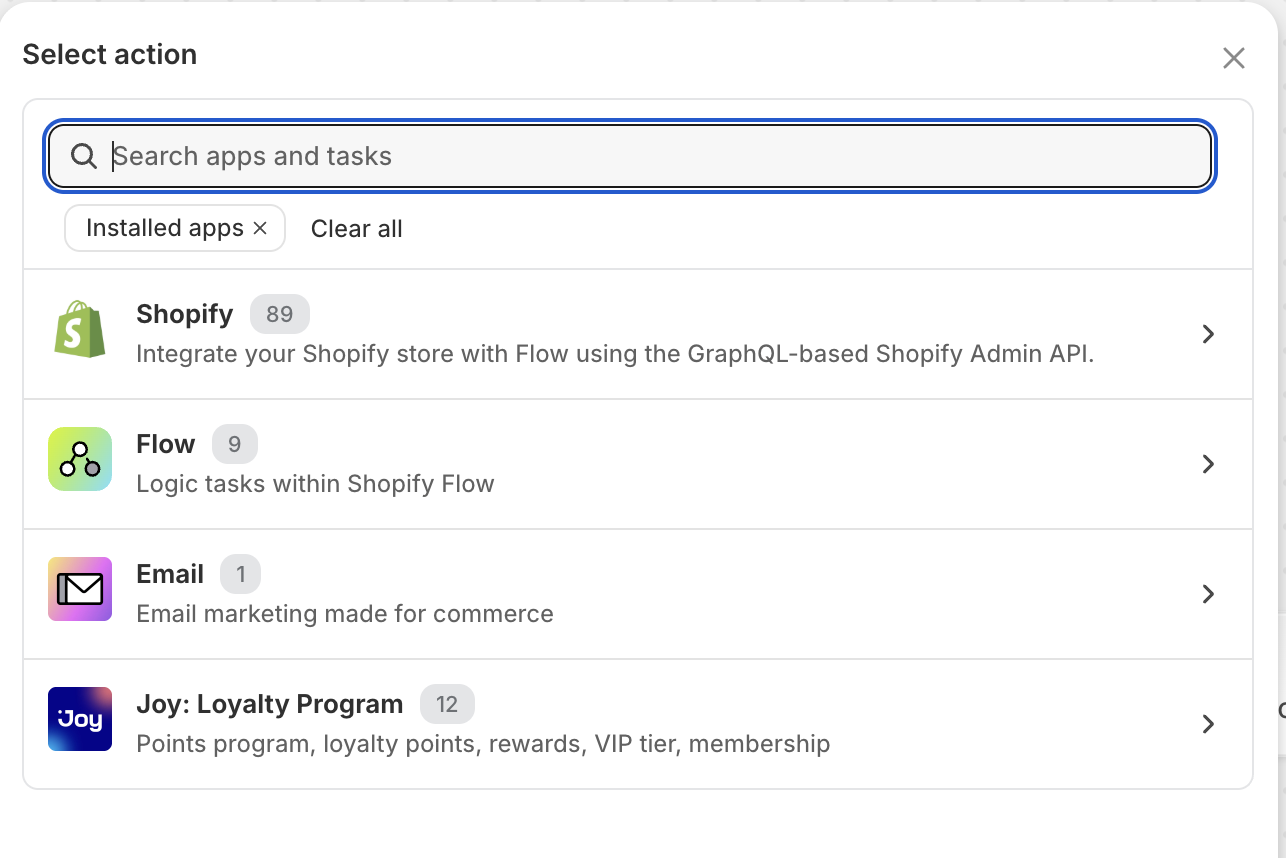
image 7
  1. Select Add point by variable.

(Screenshot: Joy → Add point by variable)
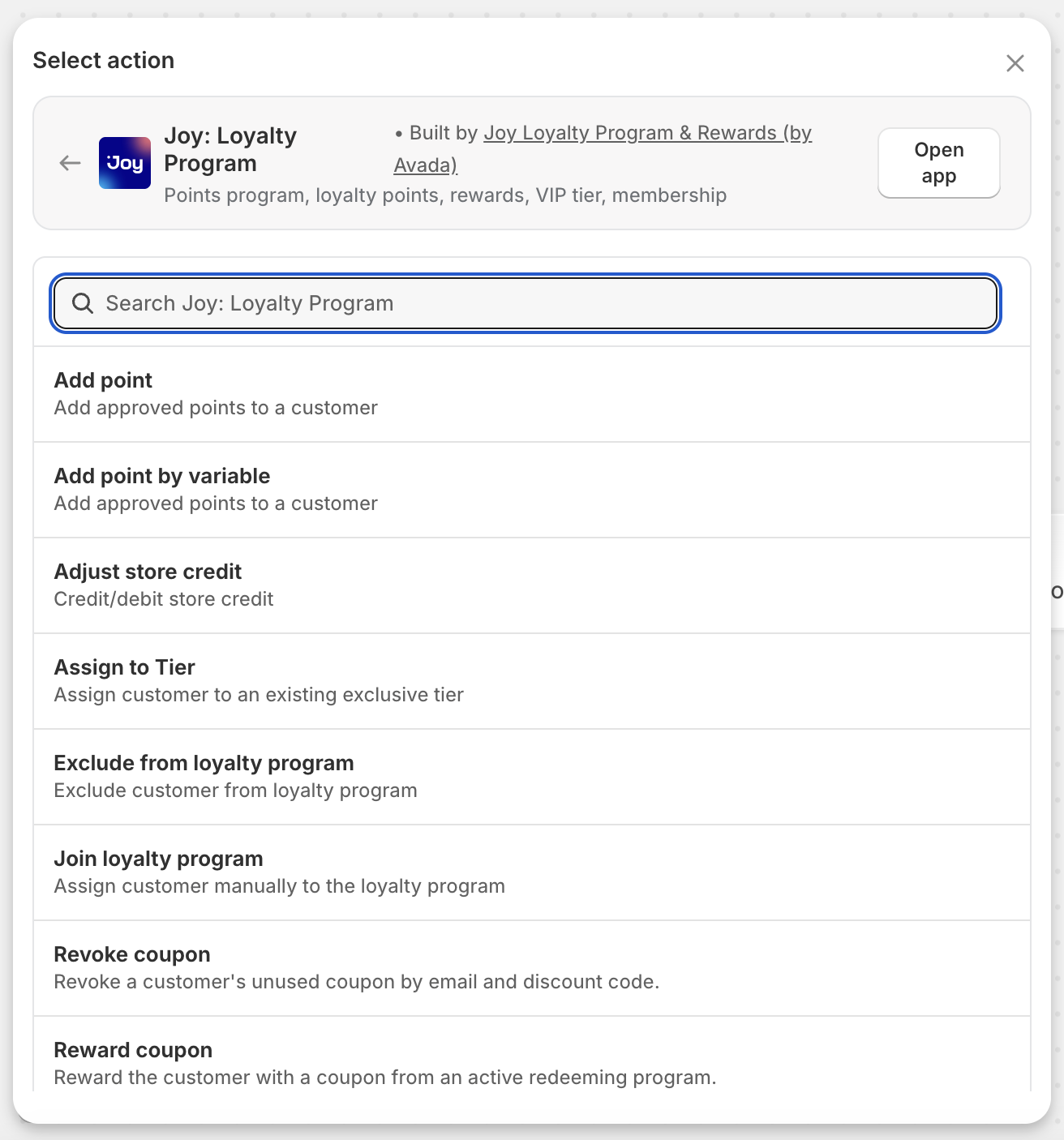
image 8

This allows us to dynamically send the Snap Rewards points into Joy.


5. Map Snap Rewards Data to Joy #

In the Joy action configuration:

Points to Add #

  • Click Add variable
  • Select snapRewardsPoints

Reason #

Receipt submission

Email address of the customer #

  • Click Add variable
  • Navigate to:
    customer → defaultEmailAddress → emailAddress

(Screenshot: Joy variable setup screen with snapRewardsPoints and customer email)
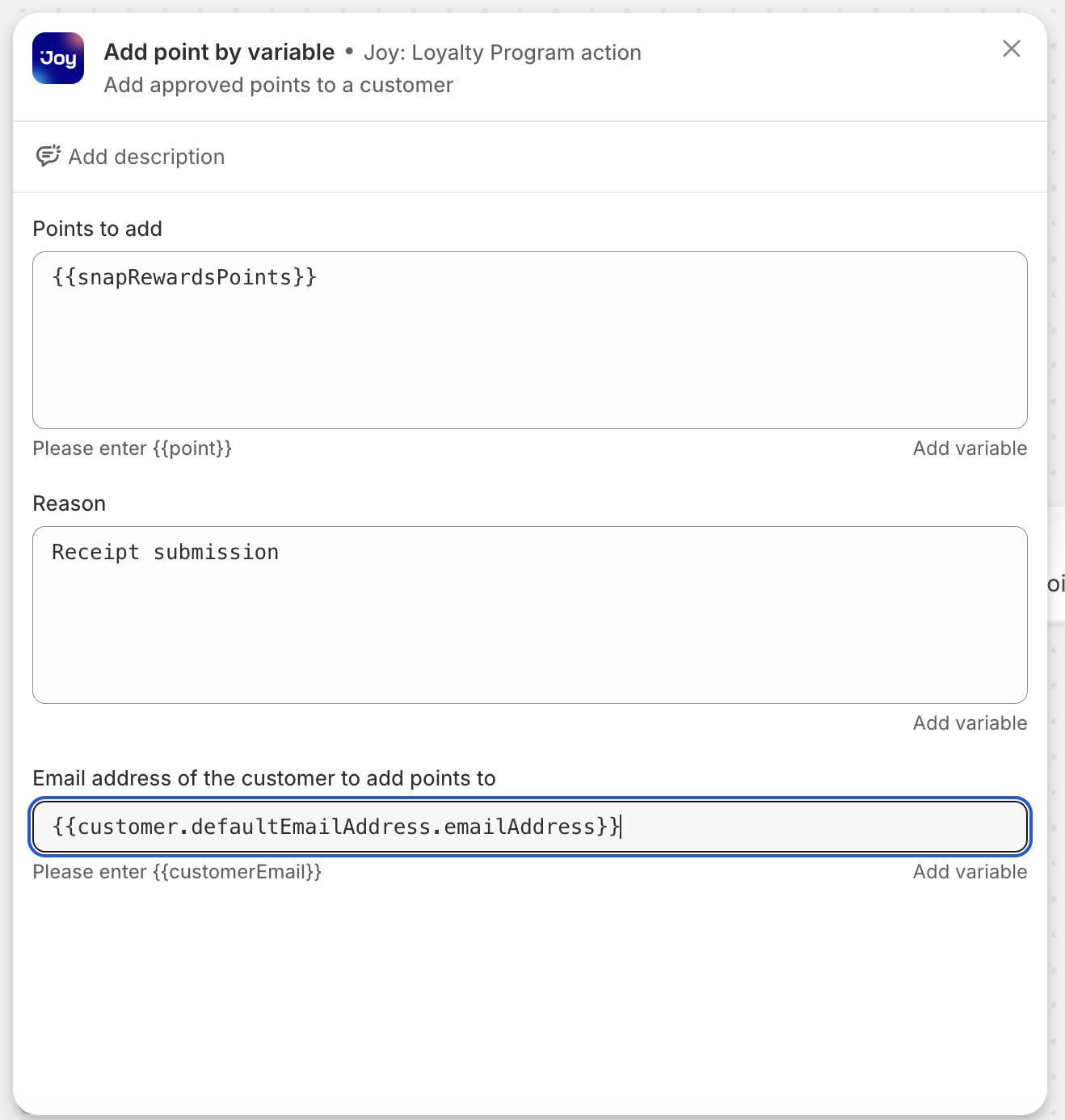
image 9

6. Turn On Your Workflow #

Once your action is connected, your Flow canvas should show the complete workflow.

(Screenshot: Shopify Flow workflow → Turn on workflow button)
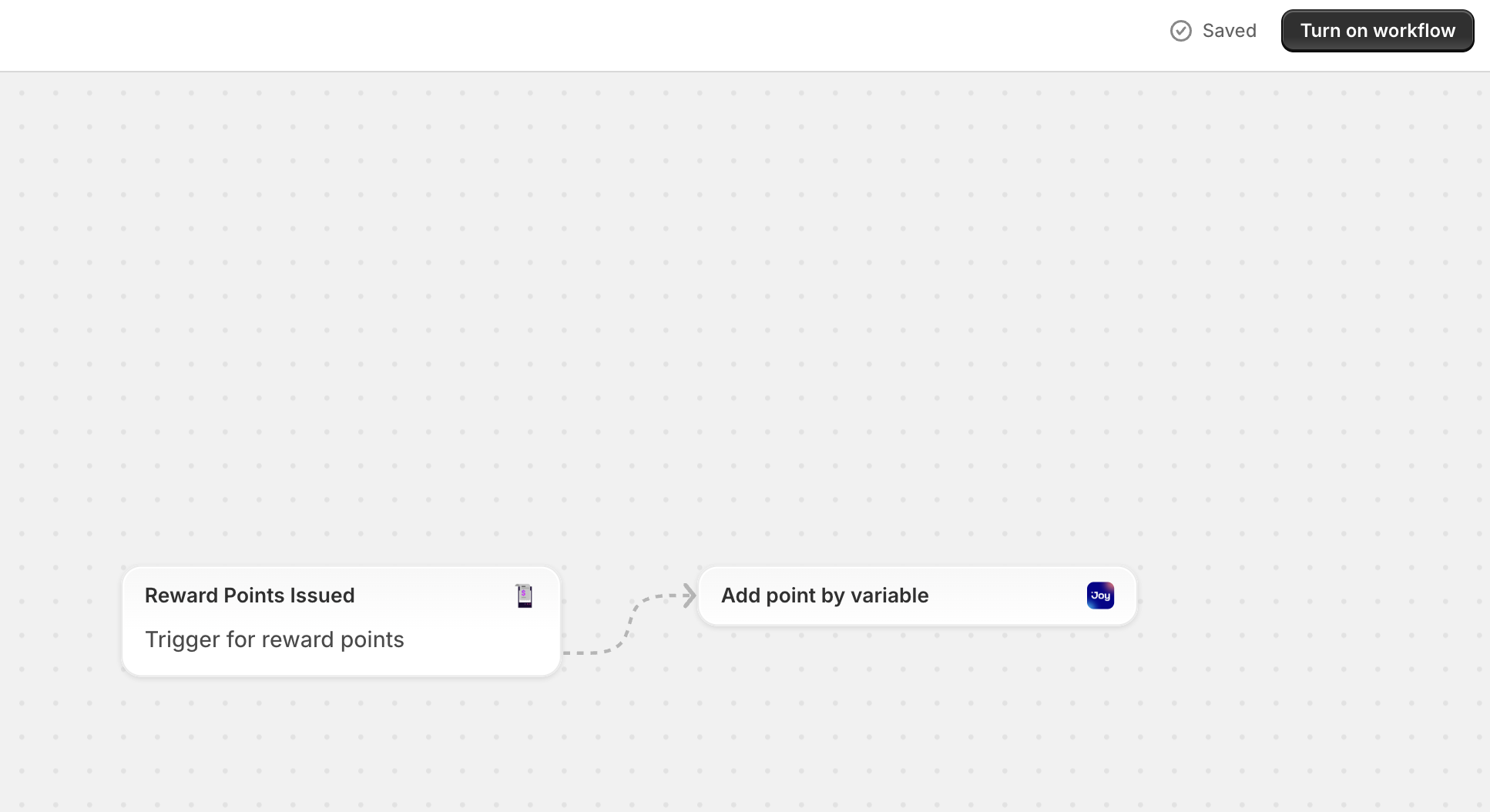
image 10

Click Turn on workflow in the top-right corner.

Your automation is now live!


🎉 You’re Done! #

Your integration is complete:

  • A customer uploads a receipt
  • Snap Rewards scans and approves it
  • Snap Rewards issues loyalty points
  • Shopify Flow receives the “Reward Points Issued” event
  • Joy automatically adds points to the customer’s account

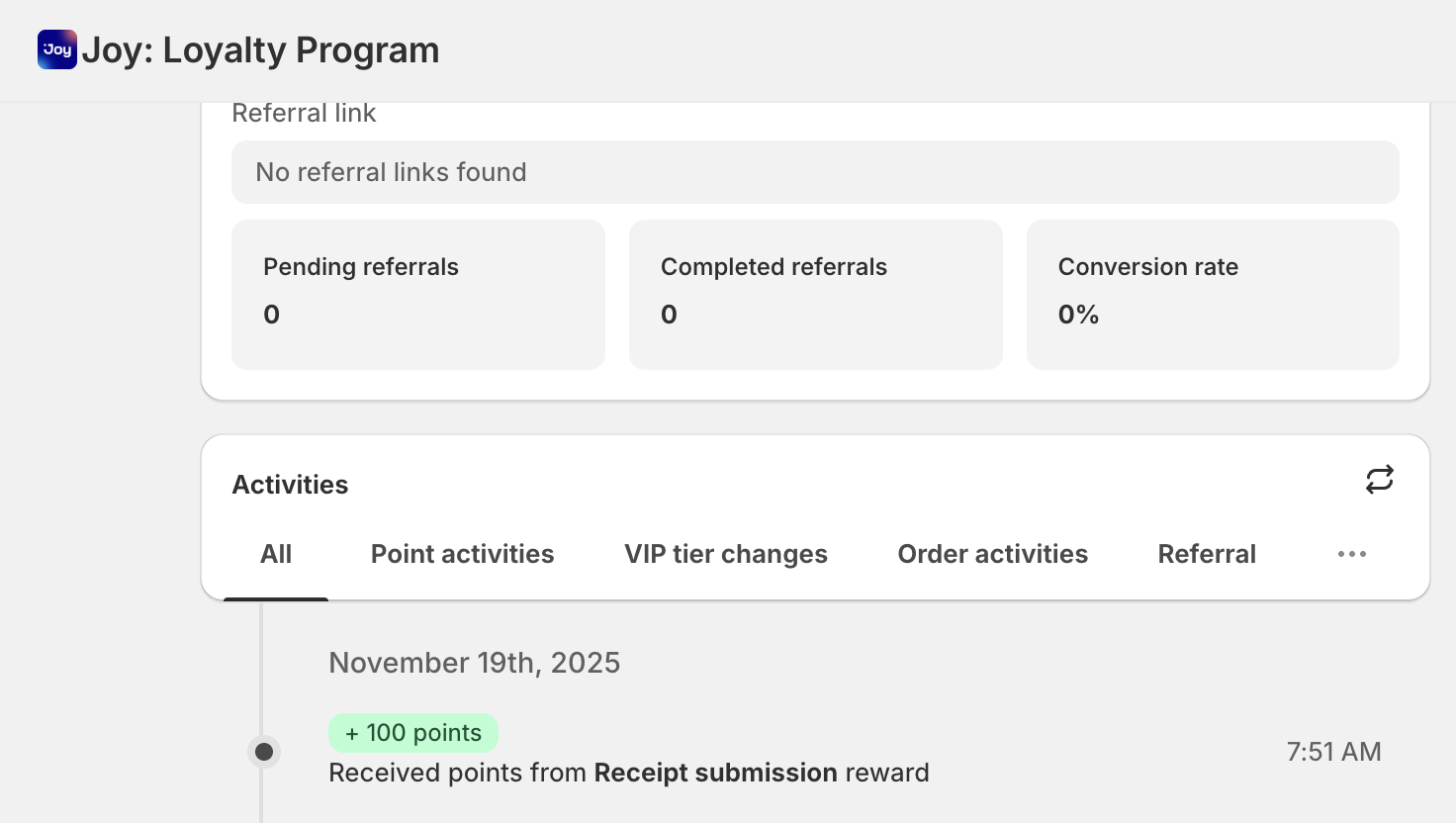
Test your campaign landing page by uploading a receipt — you should see points appear in Joy right away.
Receive rewards

If you need help customizing your workflow, adding conditions, or connecting additional loyalty apps, our team is here to help!

Updated on November 18, 2025

What are your Feelings

  • Happy
  • Normal
  • Sad
Share This Article :
  • Facebook
  • X
  • LinkedIn
  • Pinterest

Powered by BetterDocs

Table of Contents
  • Automatically Award Loyalty Points When Customers Upload Receipts
  • 1. Configure Your Snap Rewards Campaign
  • 2. Open the Shopify Flow App
  • 3. Choose the Snap Rewards Trigger
  • 4. Add Your Joy Loyalty Action
  • 5. Map Snap Rewards Data to Joy
    • Points to Add
    • Reason
    • Email address of the customer
  • 6. Turn On Your Workflow
  • 🎉 You're Done!
logo

Snap Rewards is the ultimate solution for Shopify stores looking to boost customer engagement and build loyalty.

Main Links
  • Home
  • Pricing
  • Loyalty news
  • Partnerships
  • Contact
  • Support
Contact Us
  • 1800-121-3637
  • info@snap-rewards.com
  • Snap Rewards
    Three Digital Software Trading LLC
    P-316 The Binary
    Business Bay
    Dubai

All rights reserved © Snap Rewards 2025

Privacy Policy | Privacy Note | Terms of Website Use
Manage Consent
To provide the best experiences, we use technologies like cookies to store and/or access device information. Consenting to these technologies will allow us to process data such as browsing behavior or unique IDs on this site. Not consenting or withdrawing consent, may adversely affect certain features and functions.
Functional Always active
The technical storage or access is strictly necessary for the legitimate purpose of enabling the use of a specific service explicitly requested by the subscriber or user, or for the sole purpose of carrying out the transmission of a communication over an electronic communications network.
Preferences
The technical storage or access is necessary for the legitimate purpose of storing preferences that are not requested by the subscriber or user.
Statistics
The technical storage or access that is used exclusively for statistical purposes. The technical storage or access that is used exclusively for anonymous statistical purposes. Without a subpoena, voluntary compliance on the part of your Internet Service Provider, or additional records from a third party, information stored or retrieved for this purpose alone cannot usually be used to identify you.
Marketing
The technical storage or access is required to create user profiles to send advertising, or to track the user on a website or across several websites for similar marketing purposes.
Manage options Manage services Manage {vendor_count} vendors Read more about these purposes
View preferences
{title} {title} {title}