Automatically Award Loyalty Points When Customers Upload Receipts #
Snap Rewards lets your customers upload receipts from your campaign landing page and instantly earn loyalty points.
With Shopify Flow, you can connect Snap Rewards to any compatible loyalty platform — including Joy: Loyalty Program, one of the most popular loyalty apps on Shopify.
This guide will walk you through the full setup:
- Configure your Snap Rewards campaign
- Create a Shopify Flow automation
- Connect Snap Rewards to Joy
- Automatically send points to the customer
1. Configure Your Snap Rewards Campaign #
- In your Snap Rewards dashboard, open your campaign.
- Navigate to the Rewards tab.
- Select Loyalty Points as the Reward Type.
- Choose Shopify Flow as the Loyalty Provider.
(Screenshot: Snap Rewards → Configure Campaign → Loyalty Points → Shopify Flow)
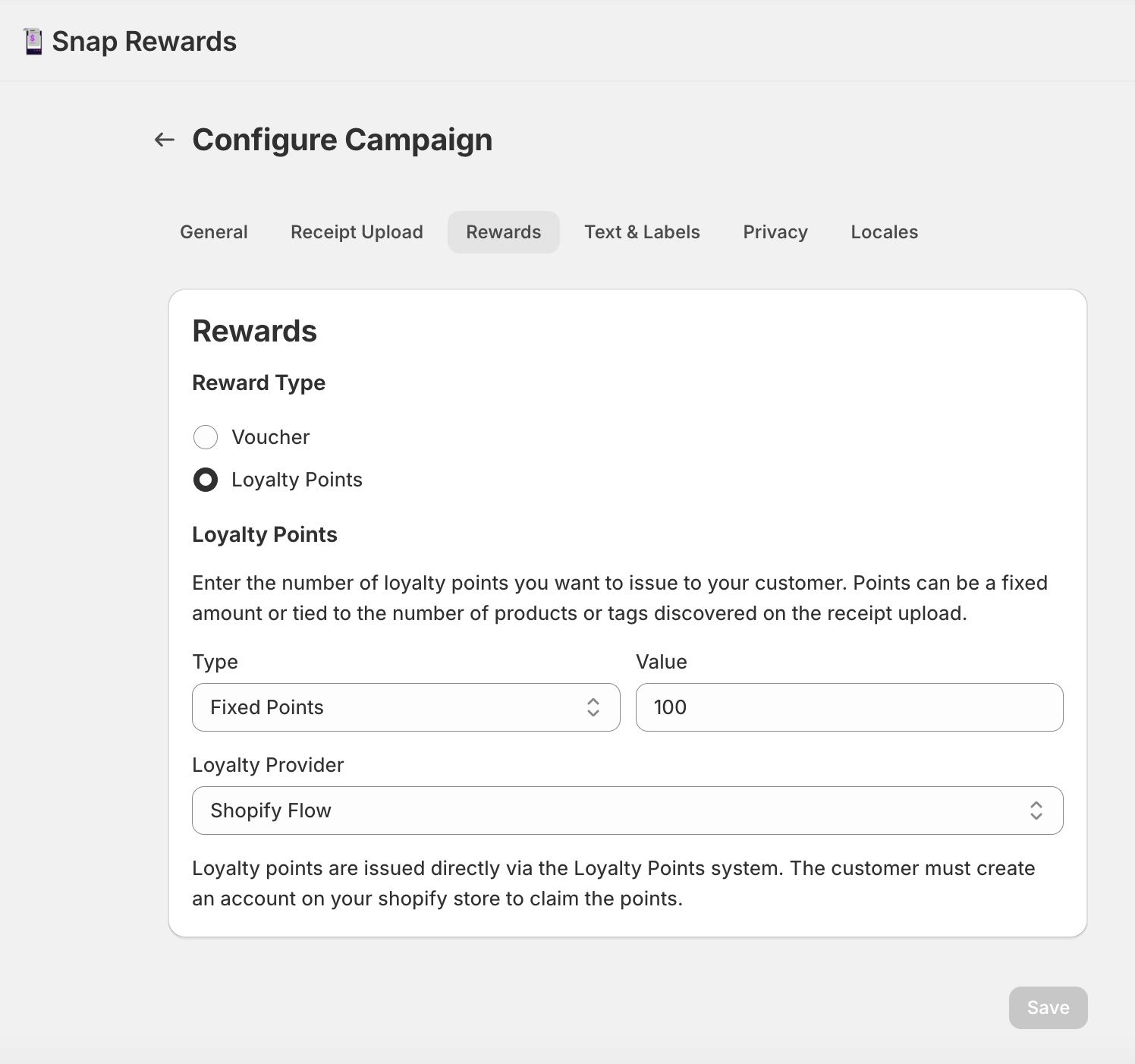
This enables Snap Rewards to send a Flow event each time points are issued.
2. Open the Shopify Flow App #
- In your Shopify Admin, go to Apps → Flow.
- Click Create workflow.
(Screenshot: Shopify Flow → Create Workflow)

3. Choose the Snap Rewards Trigger #
- Click Select a Trigger.
(Screenshot: Start building → Select a trigger)
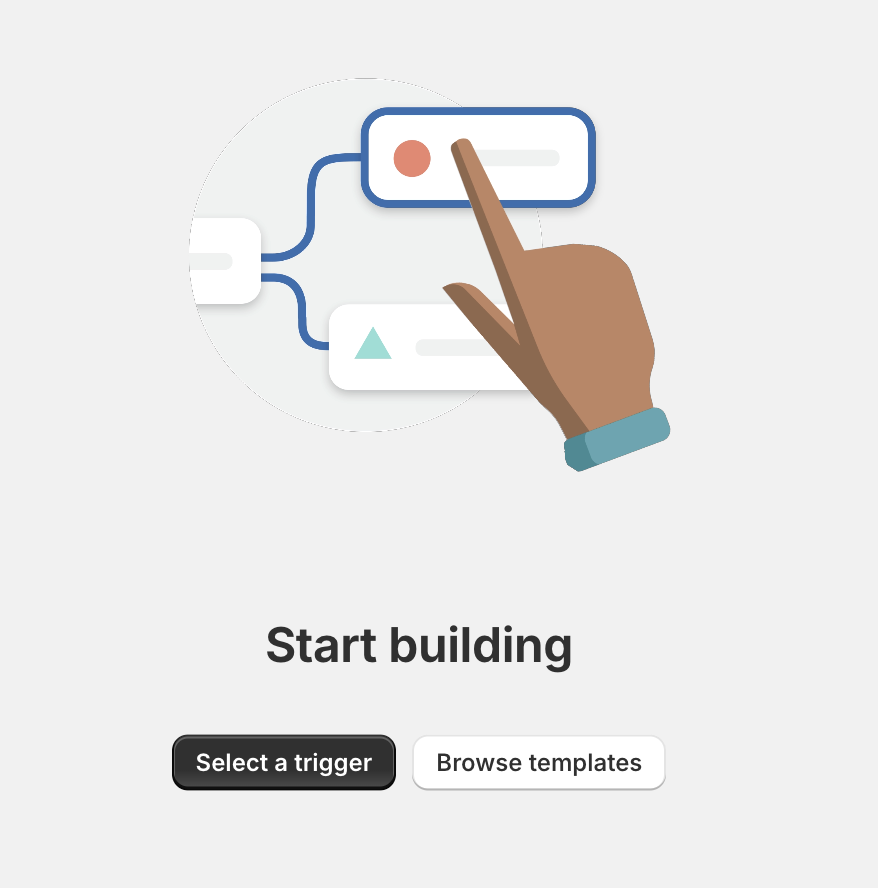
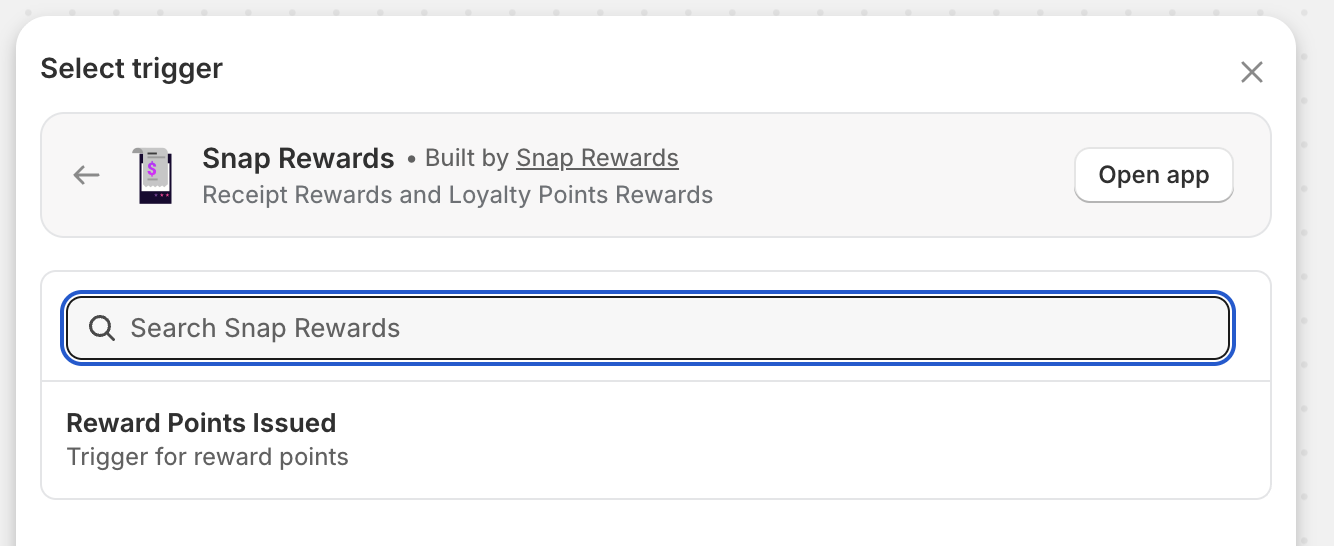
- Select Snap Rewards from the Installed Apps list.
- Choose Reward Points Issued.
(Screenshots: Snap Rewards → Reward Points Issued)
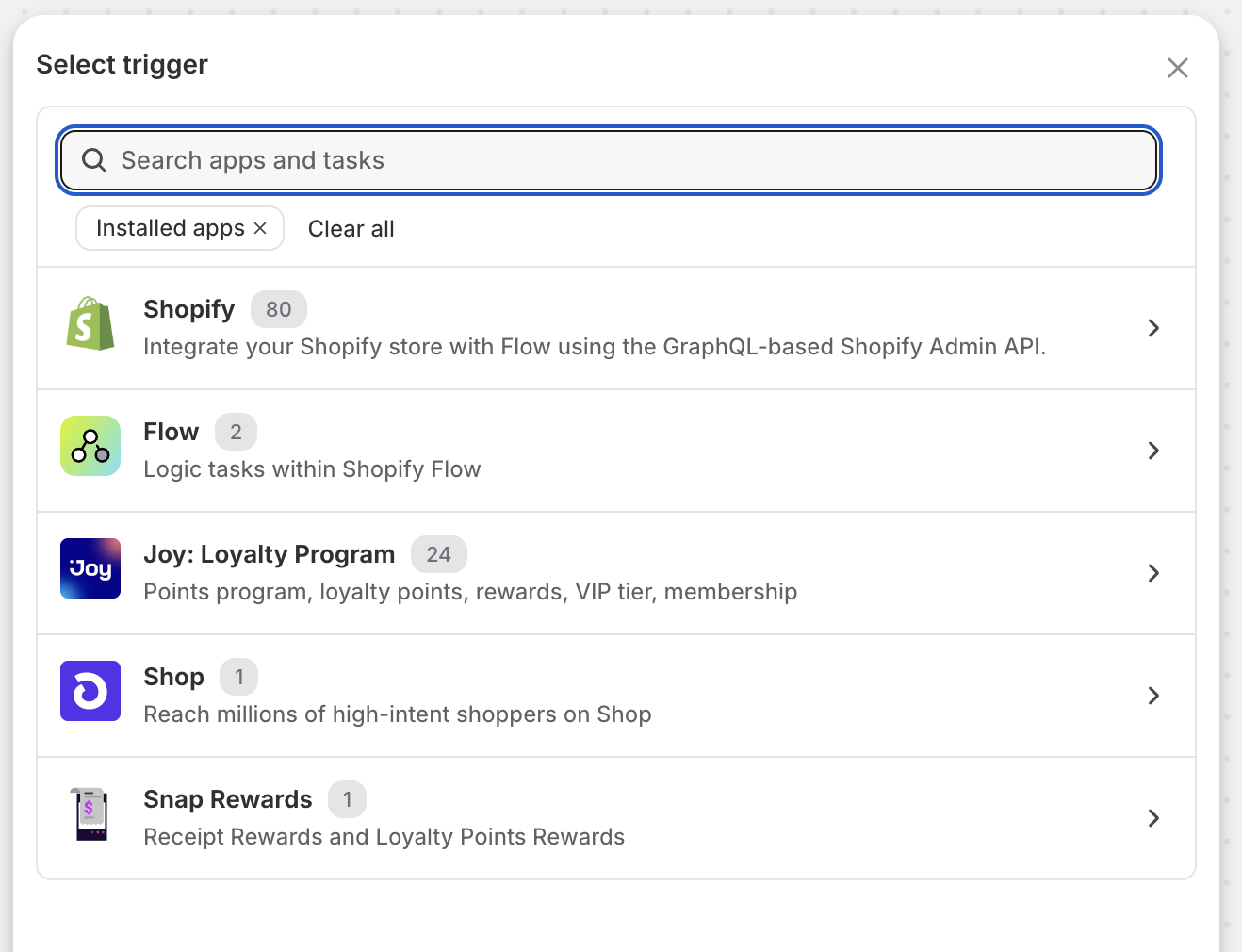
This trigger fires whenever a customer earns points through Snap Rewards.
4. Add Your Joy Loyalty Action #
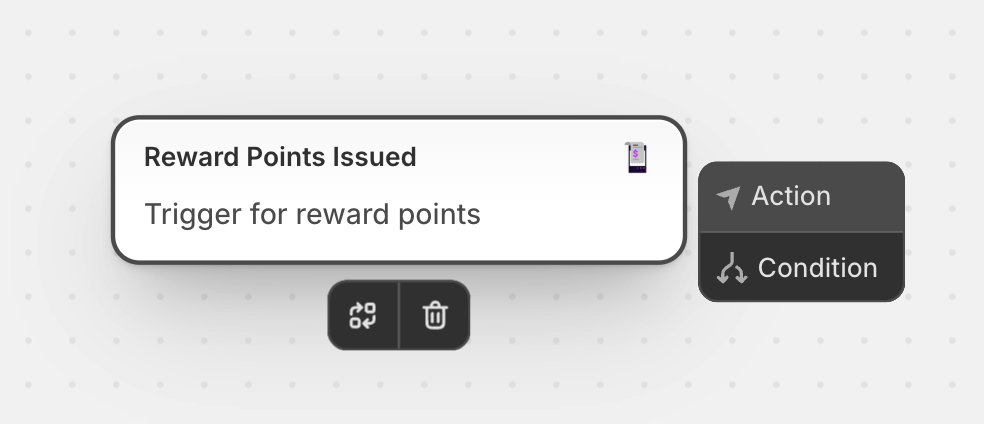
- Click the Trigger block inside the workflow.
- Select Action.
(Screenshot: Trigger → Action)
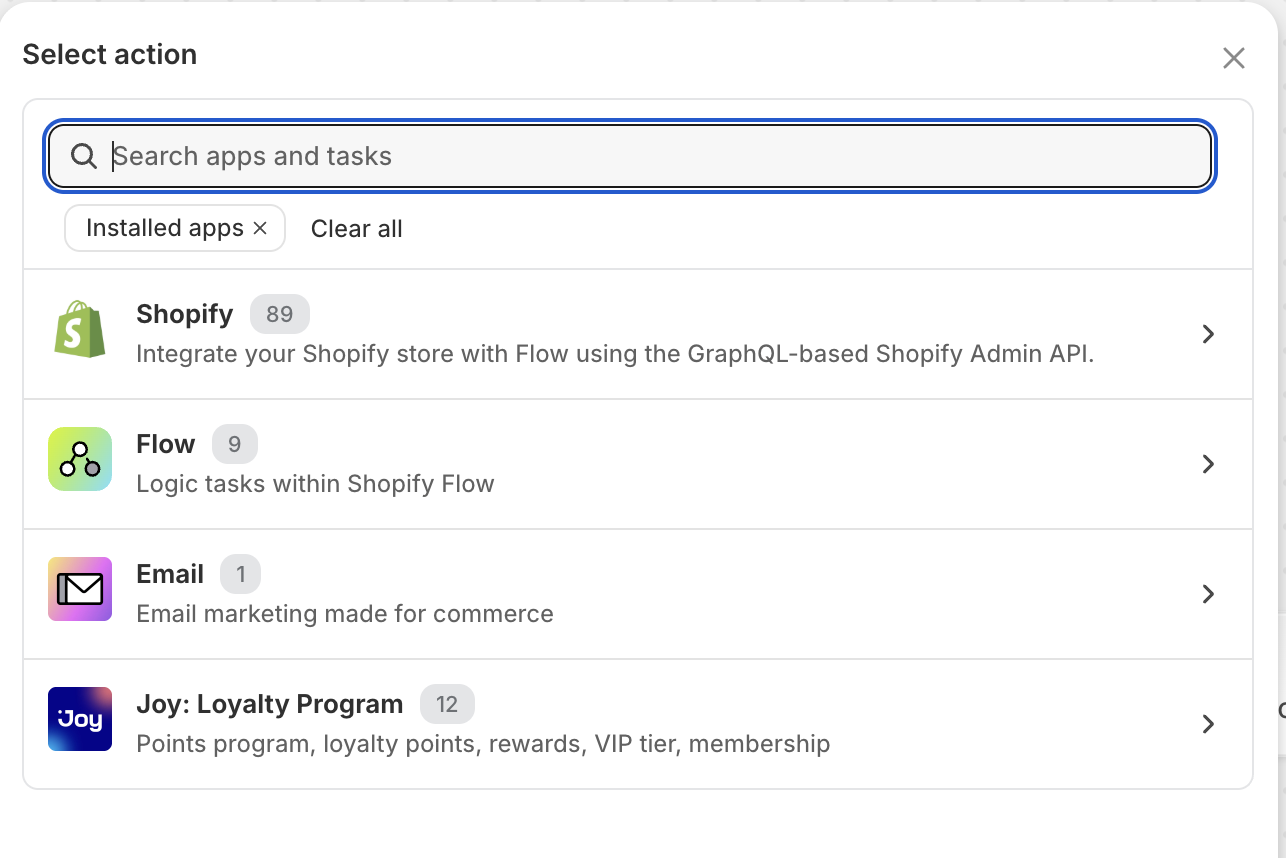
- Choose Joy: Loyalty Program from the action list.
(Screenshot: Actions → Joy Loyalty Program)
- Select Add point by variable.
(Screenshot: Joy → Add point by variable)
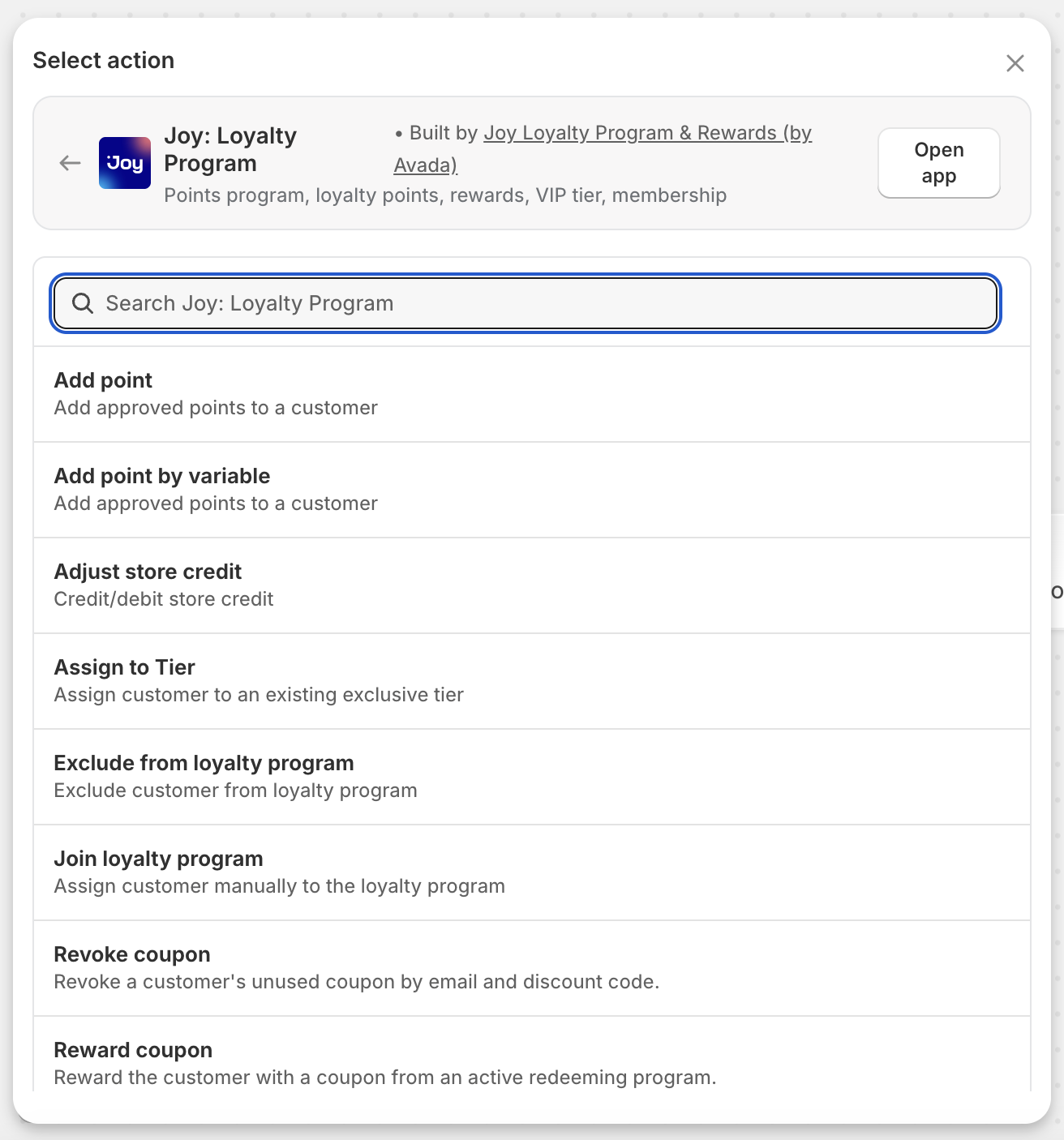
This allows us to dynamically send the Snap Rewards points into Joy.
5. Map Snap Rewards Data to Joy #
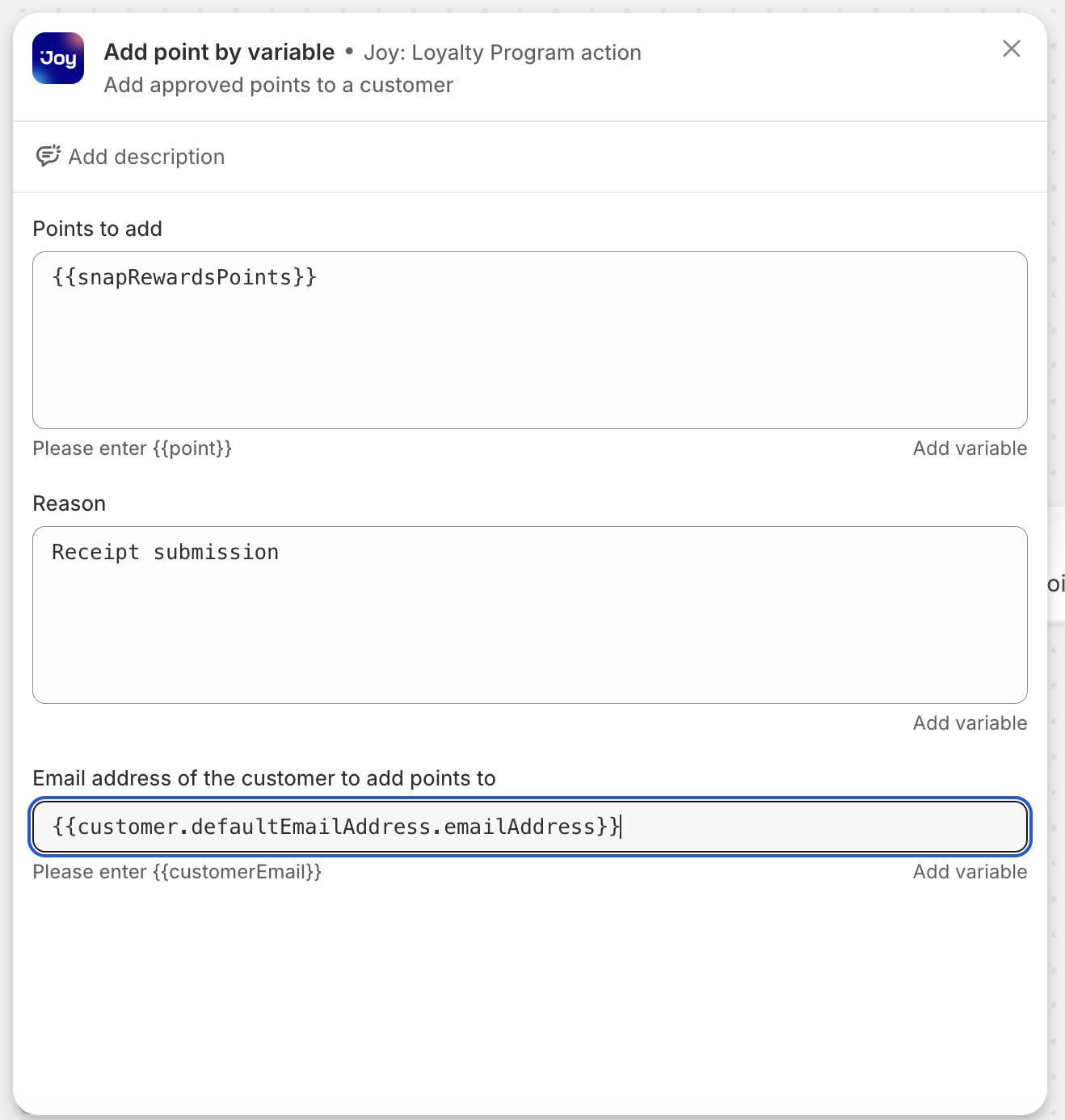
In the Joy action configuration:
Points to Add #
- Click Add variable
- Select
snapRewardsPoints
Reason #
Receipt submissionEmail address of the customer #
- Click Add variable
- Navigate to:
customer → defaultEmailAddress → emailAddress
(Screenshot: Joy variable setup screen with snapRewardsPoints and customer email)
6. Turn On Your Workflow #
Once your action is connected, your Flow canvas should show the complete workflow.
(Screenshot: Shopify Flow workflow → Turn on workflow button)
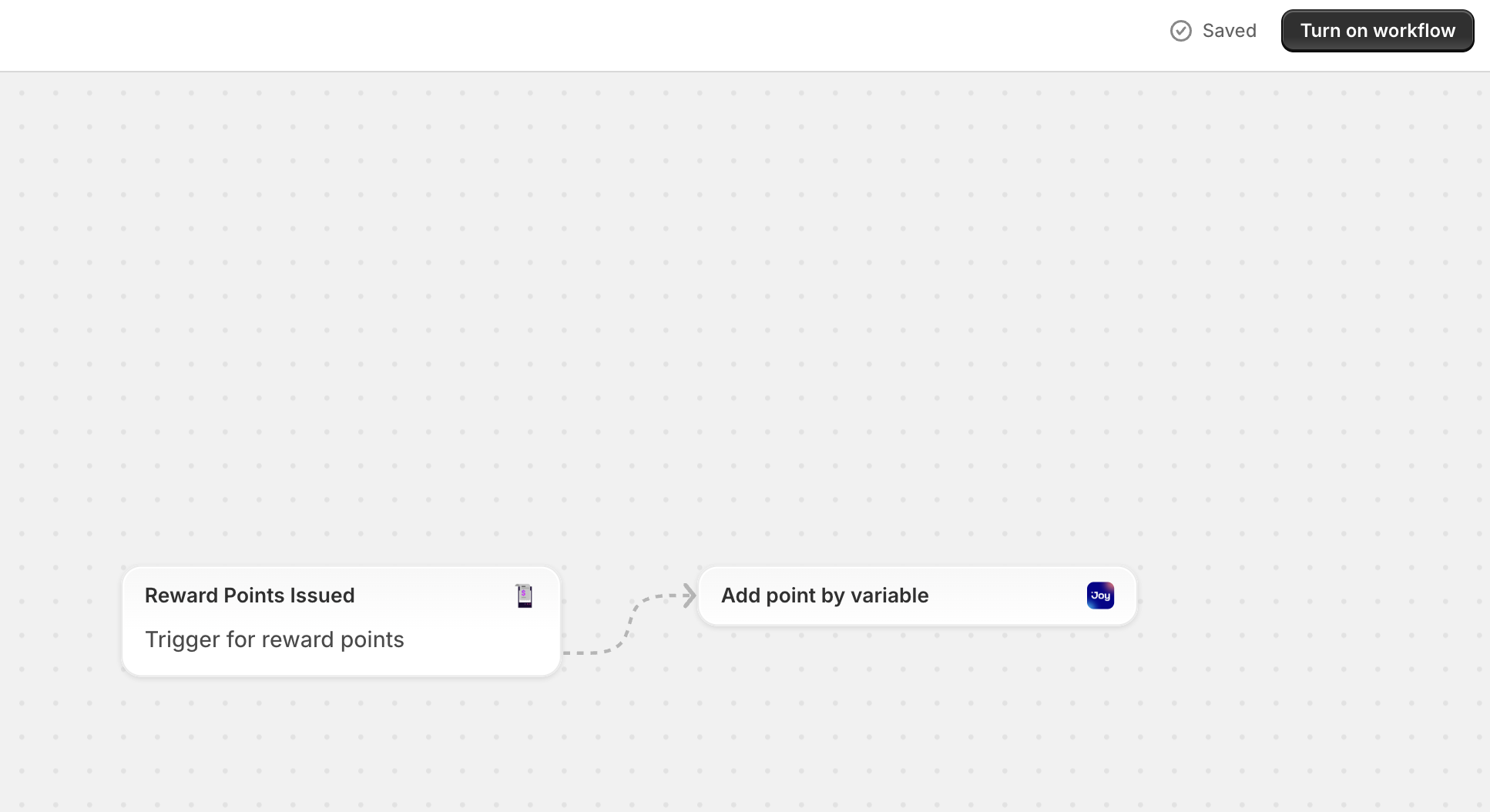
Click Turn on workflow in the top-right corner.
Your automation is now live!
🎉 You’re Done! #
Your integration is complete:
- A customer uploads a receipt
- Snap Rewards scans and approves it
- Snap Rewards issues loyalty points
- Shopify Flow receives the “Reward Points Issued” event
- Joy automatically adds points to the customer’s account
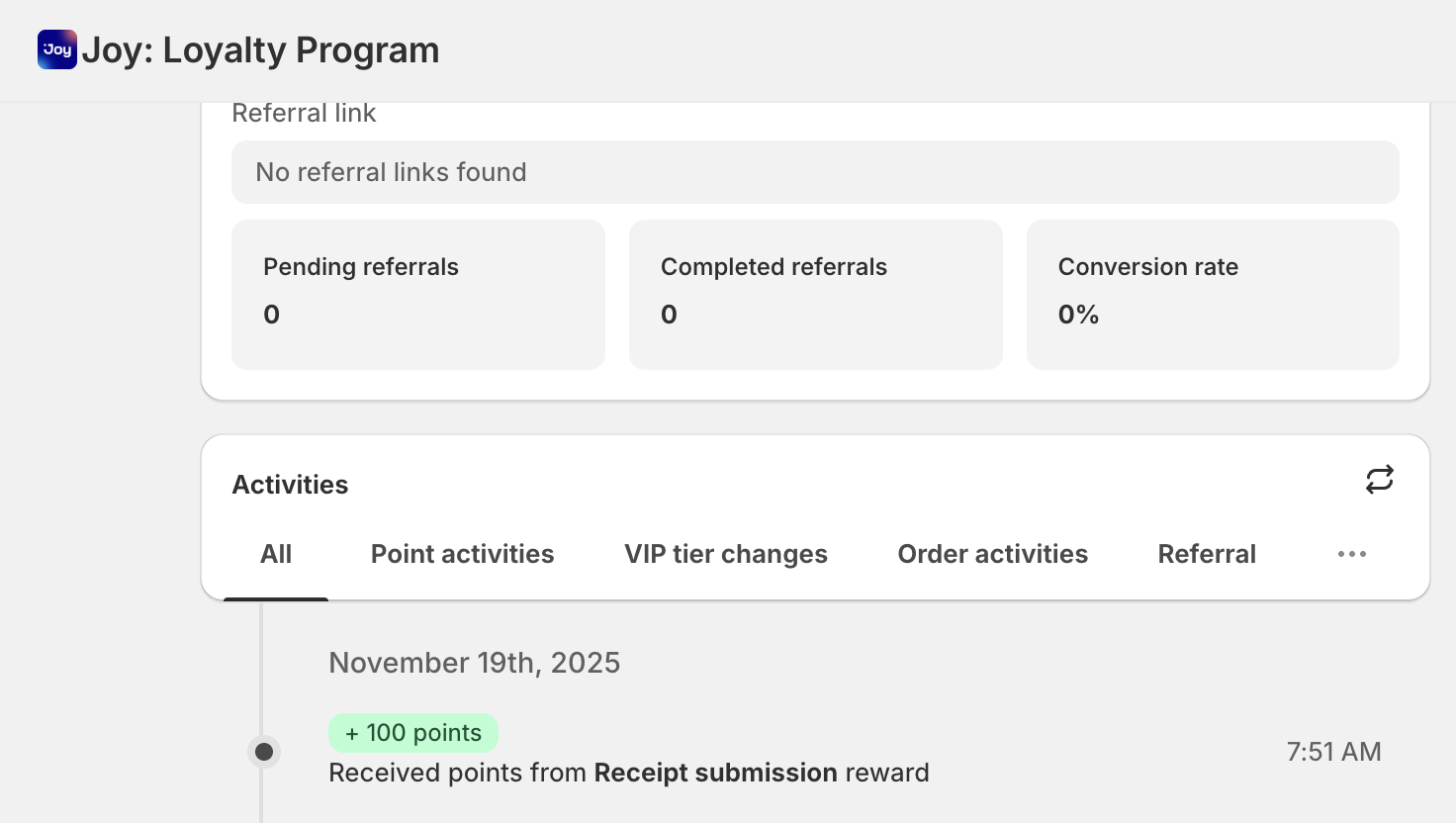
Test your campaign landing page by uploading a receipt — you should see points appear in Joy right away.
If you need help customizing your workflow, adding conditions, or connecting additional loyalty apps, our team is here to help!